Application configuration reference
You can configure your Kanzi application:
- In the C++ application in the
onConfigure() function.
- In application.cfg by setting the parameters for Kanzi Studio projects with or without C++ application.
While you can configure your Kanzi application in the onConfigure() function, in application.cfg you can configure some parameters without recompiling your application or even without a C++ application. The configuration you specify in application.cfg overrides the configuration you specify in onConfigure().
For example, in application.cfg you can tell your Kanzi application which kzb file to load, enable performance information in your application, and set how many threads you want to use for loading the application resources.
Setting which application.cfg to use
When you have more than one Kanzi application executable file in a directory you can specify a separate configuration file for each executable.
To set which application.cfg to use when running your Kanzi application from the command line enter the name of the application executable file followed by the -config flag, and the name of the configuration file.
For example, to run a Kanzi application named MyApplication with the myConfiguration.cfg file use
MyApplication.exe -config=myConfiguration.cfg
Using the application.cfg
To configure your Kanzi application using application.cfg, create an application.cfg file that contains the parameter names and their values in:
- <ProjectName>/Application Player if you have a Kanzi Studio project without a C++ application
- <ProjectName>/Application/bin if you have a Kanzi Studio project with a C++ application
When you launch your Kanzi application, the application uses the parameters in the application.cfg to configure your application.
Application idle state
Kanzi suspends the main loop when there is no input, tasks, timers, animations, or when there is nothing in the application that updates the rendering. See Application idle state.
When using application idle state, consider these use cases:
- If your Kanzi application is showing an animation, Kanzi by default throttles the CPU to the maximum FPS. If there are no animations, Kanzi sets the application to idle state. For this reason to conserve the CPU and power, Kanzi by default limits the maximum frame rate to 60 frames per second. Use the application configuration to set the maximum frame rate for your application. See Maximum FPS.
- If your application relies on continuously calling
Application::updateOverride, disable the application idle state.
| In application.cfg |
ApplicationIdleState = value
|
In onConfigure() |
configuration.applicationProperties.applicationIdleStateEnabled = value;
|
| Values |
0
|
Disable the application idle state. |
1
|
Enable the application idle state. Default value. |
|
| application.cfg example |
# Disables the application idle state.
ApplicationIdleState = 0
|
onConfigure() example |
// Disables the application idle state.
configuration.applicationProperties.applicationIdleStateEnabled = 0;
|
Performance information
You can enable the display of Performance HUD that shows the performance information for your Kanzi application. Use Kanzi's Performance HUD to see how your application performs on target devices and to find bottlenecks and areas for improvement.
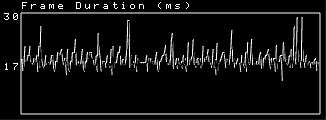
Performance HUD shows the overall performance indicators of your Kanzi application during the last 300 frames including:- Frame duration shows the time in milliseconds it took to render a frame. The top value in the Frame duration graph shows the longest, and the bottom value the average time it took to render a frame during the last 300 frames.
Use this information to identify performance bottlenecks in your Kanzi application. For example, you can use it to find out how to improve the performance of your application by distributing rendering across several frames. See Distributing rendering across several frames.
- Frames per second shows the number of frames rendered per second.
- Animation Duration (μs) shows the time in microseconds it takes to execute all animations in the application for the last frame, and the average, highest, and lowest times.
- Batch count shows how many individual draw calls were executed (
glDrawElements and glDrawArrays).
You can access the batch count using the Kanzi Engine API by calling getBatchCount().
The top value in the Batch count graph shows the highest number of batches during the last 300 frames, and the bottom value the number of batches in the last frame.
- Triangle count shows how many individual triangles were drawn in total during a frame.
You can access the triangle count in the Kanzi Engine API by calling getTriangleCount(). - Texture switches shows how many times a new texture was bound to GPU.
You can access the texture switch count in the Kanzi Engine API by calling getTextureSwitchCount(). - FBO switches shows how many framebuffer objects were bound to GPU. See Rendering best practices.
You can access the buffer switch count in the Kanzi Engine API by calling getFramebufferSwitchCount(). - Shader shows how many times a new shader was bound for the newly applied batch and how many individual shader uniforms were sent for the last frame. See Reducing shader switches.
You can access the shader switch count in the Kanzi Engine API by calling getShaderSwitchCount().
You can access the uniforms sent in the Kanzi Engine API by calling getUniformSendCount(). - Buffer switches shows how many vertex, index, and uniform buffer objects were bound to GPU.
You can access the buffer switch count in the Kanzi Engine API by calling getBufferSwitchCount(). - Buffer/texture data updates shows how many times new vertex buffer or texture data was uploaded to the GPU. If the same buffer is accessed for write and read operations, these heavyweight operations can cause delay in GPU execution. The ideal value is 0.
For example, this value can increase when the text glyph cache needs frequent updates. In this case, to decrease glyph cache updates, reduce the value of the Font Size property in Text Block nodes.
You can access this in the Kanzi Engine API by calling getHeavyweightCallCount(). - View camera shows the name of the Camera node that is used for displaying the scene in your application.
- Resource memory consumption shows how much VRAM and RAM your Kanzi application uses.
See Best practices.
| In application.cfg | PerformanceInfoLevel = level |
In onConfigure() | configuration.performanceInfoLevel = ApplicationProperties::level; |
| Values | level | The level of display of performance information. To disable the display of the Performance HUD: - In application.cfg use
0. Default value. - In
onConfigure() use PerformanceInfoLevelDisabled. Default value.
To enable the display of the frames rendered per second (FPS): - In application.cfg use
1. - In
onConfigure() use PerformanceInfoLevelFPS.
To enable the display of the full Performance HUD: - In application.cfg use
2. - In
onConfigure() use PerformanceInfoLevelFull.
|
|
| application.cfg example | # Enables the full Performance HUD in a Kanzi application.
PerformanceInfoLevel = 2 |
onConfigure() example | // Enables the full Performance HUD in a Kanzi application.
configuration.performanceInfoLevel = ApplicationProperties::PerformanceInfoLevelFull; |
Logging graphics API calls
You can enable Kanzi to print to the debug console the graphics API calls of your application in the Application::onConfigure() function, in the application.cfg, or using the command line argument, if your target supports command line arguments.
On the command line use:
-log-graphics to log the graphics API calls
| In application.cfg | GraphicsLoggingEnabled = value |
In onConfigure() | configuration.graphicsLoggingEnabled = value; |
| Values | 0 | Disable the logging of the graphics API calls. Default value. | 1 | Enable the logging of the graphics API calls. |
|
| application.cfg example | # Enables the logging of the graphics API calls.
GraphicsLoggingEnabled = 1 |
onConfigure() example | // Enables the logging of the graphics API calls.
configuration.graphicsLoggingEnabled = 1; |
Runtime switching between OpenGL and OpenGLES
You can select whether you want to use ES or GL in the Application::onConfigure() function, in the application.cfg, or using the command line arguments, if your target supports command line arguments.
On the command line use:
-gles to use ES-gl to use GL-egl to use EGL-wgl to use WGL
| In application.cfg | GraphicsBackend = type
GraphicsContextAPI = contextAPI |
In onConfigure() | configuration.defaultSurfaceProperties.type = type;
configuration.defaultSurfaceProperties.contextApi = contextAPI; |
| Values | |
| application.cfg example | # Sets the surface target for OpenGLES 2.0 rendering and EGL graphics context.
GraphicsBackend = GLESGraphicsContextAPI = EGL |
onConfigure() example | // Sets the surface target for OpenGLES 2.0 rendering and EGL graphics context.
configuration.defaultSurfaceProperties.type = KZS_SURFACE_TYPE_ES2_ONLY;
configuration.defaultSurfaceProperties.contextApi = KZS_GRAPHICS_CONTEXT_API_EGL; |
Size of the glyph cache texture
When you use a Text Block Kanzi creates a glyph cache texture for every font and font size combination. You can set the height and width of glyph cache textures to adjust the size of the glyph cache texture either when it gets full, or to optimize the performance of your Kanzi application.
Because larger glyph cache textures use more VRAM, try different sizes before you set the final size . The upper limit of the glyph cache texture size depends on the GPU, but usually it is 2048 by 2048 pixels. The default size of the glyph cache texture is 512 by 512 pixels.
Kanzi applies the size of the glyph cache texture to all glyph cache textures.
| In application.cfg | GlyphCacheHeight = size
GlyphCacheWidth = size |
In onConfigure() | configuration.glyphCacheHeight = size;
configuration.glyphCacheWidth = size; |
| Values | size | Size of the glyph cache texture in pixels. The default value is 512. |
|
| application.cfg example | # Sets the glyph cache texture height to 768, and width to 1024 pixels.
GlyphCacheHeight = 768
GlyphCacheWidth = 1024 |
onConfigure() example | // Sets the glyph cache texture height to 768, and width to 1024 pixels.
configuration.glyphCacheHeight = 768;
configuration.glyphCacheWidth = 1024; |
Loading preferences
When users run your Kanzi application in an environment with a multi-core processor, Kanzi automatically uses multiple CPU cores to load the GPU resources in the kzb files to RAM. See Loading resources in parallel.
GPU resources Kanzi loads in parallel include all types of textures, shaders, and meshes. To deploy these resources from RAM to GPU memory and to load prefab templates, Kanzi always uses the main thread. See Images and textures best practices, Shaders best practices, Meshes best practices.
| In application.cfg | LoadingThreadCount = threads |
In onConfigure() | configuration.loadingThreadCount = threads; |
| Values | threads | Number of CPU cores used for loading the resources. The default value is 3. |
|
| application.cfg example | # Switches off the use of multiple cores for loading your application.
# Loads your application resources using the main thread.
LoadingThreadCount = 0
# Uses six threads to load your application.
LoadingThreadCount = 5 |
onConfigure() example | // Switches off the use of multiple cores for loading your application.
// Loads your application resources using the main thread.
configuration.loadingThreadCount = 0;
// Uses six threads to load your application.
configuration.loadingThreadCount = 5; |
Maximum number of resources processed by the loading threads
You can set the maximum number of resources that the loading threads process at the same time. By increasing the number of resources you can speed up the loading, but at the same time you increase the peak memory use during loading because you can load more resources to the memory before they are deployed to the GPU.
| In application.cfg | MaxPendingResources = resources |
In onConfigure() | configuration.maxPendingResources = resources; |
| Values | resources | The maximum number of resources processed at the same time by the loading threads. The default value is 0 and sets the maximum number of resources to the number of loading threads +1. |
|
| application.cfg example | # Sets the maximum number of resources processed by the loading
# threads to the number of loading threads + 1. This is the default value.
MaxPendingResources = 0 # Sets the maximum number of resources processed by the loading
# threads to 20 resources.
MaxPendingResources = 20 |
onConfigure() example | // Sets the maximum number of resources processed by the loading
// threads to the number of loading threads + 1. This is the default value.
configuration.maxPendingResources = 0; // Sets the maximum number of resources processed by the loading
// threads to 20 resources.
configuration.maxPendingResources = 20; |
Surface properties
Surface properties control the properties of the hardware accelerated graphics surface on which Kanzi renders. They control the relation between image quality and rendering speed. The surface properties you set are considered requests to be matched by the graphics system of the target hardware. Whether a given request is considered an upper bound, a lower bound, or an exact value is platform dependent.
The default values of surface properties are platform dependent. You can get them by calling kzsSurfaceGetDefaultProperties().
| In application.cfg | SurfaceBitsStencil = stencil
SurfaceBitsDepthBuffer = buffer
SurfaceBitsRed = red
SurfaceBitsGreen = green
SurfaceBitsBlue = blue
SurfaceBitsAlpha = alpha
SurfaceSamplesAntialiasing = anti
SwapBehavior = swap
|
In onConfigure() | configuration.defaultSurfaceProperties.bitsStencil = stencil;
configuration.defaultSurfaceProperties.bitsDepthBuffer = buffer;
configuration.defaultSurfaceProperties.bitsColorR = red;
configuration.defaultSurfaceProperties.bitsColorG = green;
configuration.defaultSurfaceProperties.bitsColorB = blue;
configuration.defaultSurfaceProperties.bitsAlpha = alpha;
configuration.defaultSurfaceProperties.antiAliasing = anti;
configuration.defaultSurfaceProperties.swapBehaviorCopy = swap;
configuration.defaultSurfaceProperties.priority = priority; |
| Values | stencil | Size of the stencil buffer in bits. | buffer | Size of the depth buffer in bits. | red | Size of the red color channel in bits. | green | Size of the green color channel in bits. | blue | Size of the blue color channel in bits. | alpha | Size of the alpha channel in bits. | anti | Number of anti-aliasing samples used. | swap | During the swap buffer, are the buffers swapped or copied. Use 1 for copy, 0 for swap, KZS_SURFACE_PROPERTY_DONT_CARE for automatic selection. Default value is 0 (swap). | priority | Enables the creation of EGL content with a priority hint. The default value is KZS_SURFACE_PROPERTY_DONT_CARE, which does not apply the priority. You can set the priority only in the onConfigure() function. |
|
| application.cfg example | # An example configuration for a typical high-speed rendering application
SurfaceBitsStencil = 1
SurfaceBitsDepthBuffer = 16
SurfaceBitsRed = 5
SurfaceBitsGreen = 6
SurfaceBitsBlue = 5
SurfaceBitsAlpha = 0
SurfaceSamplesAntialiasing = 0 # An example configuration for a high image quality application
SurfaceBitsStencil = 8
SurfaceBitsDepthBuffer = 24
SurfaceBitsRed = 8
SurfaceBitsGreen = 8
SurfaceBitsBlue = 8
SurfaceBitsAlpha = 8
SurfaceSamplesAntialiasing = 4 |
onConfigure() example | // An example configuration for a typical high-speed rendering application
configuration.defaultSurfaceProperties.bitsStencil = 1;
configuration.defaultSurfaceProperties.bitsDepthBuffer = 16;
configuration.defaultSurfaceProperties.bitsColorR = 5;
configuration.defaultSurfaceProperties.bitsColorG = 6;
configuration.defaultSurfaceProperties.bitsColorB = 5;
configuration.defaultSurfaceProperties.bitsAlpha = 0;
configuration.defaultSurfaceProperties.antiAliasing = 0; // An example configuration for a high image quality application
configuration.defaultSurfaceProperties.bitsStencil = 8;
configuration.defaultSurfaceProperties.bitsDepthBuffer = 24;
configuration.defaultSurfaceProperties.bitsColorR = 8;
configuration.defaultSurfaceProperties.bitsColorG = 8;
configuration.defaultSurfaceProperties.bitsColorB = 8;
configuration.defaultSurfaceProperties.bitsAlpha = 8;
configuration.defaultSurfaceProperties.antiAliasing = 4; |
Position and size of the application window
You can set the position of the application on the screen relative to the upper-left corner of the screen and the size of the application window in pixels. The default size of the window is 640x480 pixels and center of the device screen.
When you run your Kanzi application in full-screen mode on a system with more than one display, you can set the default display where your Kanzi application window appears.
Note that in order to use the default application display, you have to set the window style of your Kanzi application to full-screen.
See Window style of the application and KzsWindowProperties.
| In application.cfg | WindowX = positionX
WindowY = positionY
WindowWidth = width
WindowHeight = height
DefaultDisplayIndex = index
WindowOrder = order |
In onConfigure() | configuration.defaultWindowProperties.x = positionX;
configuration.defaultWindowProperties.y = positionY;
configuration.defaultWindowProperties.width = width;
configuration.defaultWindowProperties.height = height;
configuration.defaultWindowProperties.defaultDisplayIndex = index;
configuration.defaultWindowProperties.order = order; |
| Value | positionX | Horizontal position of the top-left corner of the application window from the top-left corner of the screen in pixels. Use 0 to position the window to the left of the device screen. | positionY | Vertical position of the top-left corner of the application window from the top-left corner of the screen in pixels. Use 0 to position the window to the top of the device screen. | width | Window width in pixels. | height | Window height in pixels. | index | Index number of the display. Default value is 0. | order | Z-order of the application window. The value is target platform dependent. The default value is KZS_WINDOW_POSITION_DEFAULT, which does not apply the order. |
|
| application.cfg example | # Set the width to 1280 and height to 720 pixels and place it 100 pixels
# from the top and 1 pixel from the left side of the device screen.
WindowWidth = 1280
WindowHeight = 720
WindowX = 100
WindowY = 1 # Place the application window in the top-left corner of the device screen.
WindowX = 0
WindowY = 0 # Sets the second display as the default display for the full-screen application window.
DefaultDisplayIndex = 1
# On Windows, places the application window on top of other windows.
WindowOrder = 0 |
onConfigure() example | // Set the width to 1280 and height to 720 pixels and place it 100 pixels
// from the top and 1 pixel from the left side of the device screen.
configuration.defaultWindowProperties.width = 1280;
configuration.defaultWindowProperties.height = 720;
configuration.defaultWindowProperties.x = 100;
configuration.defaultWindowProperties.y = 1;
// Place the application window in the top-left corner of the device screen.
configuration.defaultWindowProperties.x = 0;
configuration.defaultWindowProperties.y = 0;
// Sets the second display as the default display for the full-screen application window.
configuration.defaultWindowProperties.defaultDisplayIndex = 1;
// On Windows, places the application window on top of other windows.
configuration.defaultWindowProperties.order = 0; |
Screen orientation and handling of input events
You can configure the orientation of your application screen, and define how your application handles touch and pointer input. When you run your application on a device, you can set whether the application reacts to the pointer of the device, uses a touch screen, or both. You can set these properties only in the onConfigure() function.
In onConfigure() | configuration.defaultEventSourceProperties.orientation = orientation;
configuration.defaultEventSourceProperties.transformation = transformation;
configuration.defaultEventSourceProperties.translation = translation; |
| Value | orientation | Orientation of the application screen: | transformation | Transformation matrix of the application screen. | translation | Translation of pointer and touch events: |
|
onConfigure() example | // Rotate the application screen by 180 degrees.
configuration.defaultEventSourceProperties.orientation = KZS_INPUT_ORIENTATION_ANGLE_180;
// Rotate an application screen sized 1280x720 pixels by 180 degrees.
configuration.defaultEventSourceProperties.transformation = Matrix3x3::createTranslation(1280, 720) * Matrix3x3::createRotationInDegrees(180.0f);
	}
// Translate pointer events to touch events.
configuration.defaultEventSourceProperties.translation = KZS_INPUT_TRANSLATE_POINTER_TO_TOUCH; |
Memory mapped loading
When running your Kanzi application on an operating system that supports memory mapping of files, you can enable memory mapped loading for the kzb files your Kanzi application uses. When you enable memory mapped loading you can reduce the loading times of your Kanzi application because it reduces the amount of file accesses.
Memory mapping of files is supported, for example, on Windows, Linux, and QNX operating systems. Before enabling memory mapped loading, check that it is supported on the platform running your Kanzi application.
To check whether memory mapped loading is supported on your platform, call the kzsMemoryMappedFileIsSupported() function. The function returns True if memory mapped loading is supported, and False if it is not supported.
If you enable memory mapped loading on a platform that does not support this feature, Kanzi shows a warning and uses regular file access for loading the kzb files.
| In application.cfg | UseMemoryMappedLoading = value |
In onConfigure() | configuration.useMemoryMappedLoading = value; |
| Values | 0 | Disable the memory mapped loading. Default value. | 1 | Enable the memory mapped loading. |
|
| application.cfg example | # Enables the memory mapped loading for the kzb files in your Kanzi application.
UseMemoryMappedLoading = 1 |
onConfigure() example | // Enables the memory mapped loading for the kzb files in your Kanzi application.
configuration.useMemoryMappedLoading = 1; |
Window style of the application
You can set the style of the window of your Kanzi application. Besides the default window with a border that users can resize, you can set your Kanzi application to launch in a window without a border, in a window of fixed size, and in a window that occupies the entire device screen.
To set the position and size of the application window, see Position and size of the application window.
| In application.cfg | WindowStyle = "style" |
In onConfigure() | configuration.defaultWindowProperties.style = style; |
| Value | style | Window style (onConfigure() values in parenthesis): |
|
| application.cfg example | # Launch the application in a window that occupies the whole screen of the device.
WindowStyle = "fullscreen" |
onConfigure() example | // Launch the application in a window that occupies the whole screen of the device.
configuration.defaultWindowProperties.style = KZS_WINDOW_STYLE_FULL_SCREEN; |
Maximum FPS
You can limit the number of frames rendered per second by setting the maximum frame rate.
If your Kanzi application is showing an animation, Kanzi by default throttles the CPU to the maximum FPS. If there are no animations, Kanzi sets the application to idle state. For this reason to conserve the CPU and power, Kanzi by default limits the maximum frame rate to 60 frames per second. Use the application configuration to set the maximum frame rate for your application.
See Performance information.
| In application.cfg | MaximumFPS = limit |
In onConfigure() | configuration.fpsConstraints.enabled = value;
configuration.fpsConstraints.maximumFPS = limit; |
| Value | limit | The maximum frame rate of the application in frames per second. | value | 0 disables the limit, 1 enables the limit. Required only when configuring in onConfigure(). |
|
| application.cfg example | # Sets the maximum application frame rate to 32 frames per second.
MaximumFPS = 32
# Disables the limit.
MaximumFPS = 0 |
onConfigure() example | // Enables the setting of the FPS limit.
configuration.fpsConstraints.enabled = 1;
// Sets the maximum application frame rate to 32 frames per second.
configuration.fpsConstraints.maximumFPS = 32;
// Disables the limit.
configuration.fpsConstraints.enabled = 0; |
kzb or cfg file to load
You can set which kzb file or configuration file your Kanzi application loads when you launch your Kanzi application.
See Using kzb files.
| In application.cfg | BinaryName = "name" |
In onConfigure() | configuration.binaryName = "name"; |
| Value | name | Path to a single kzb file, or to the binary configuration file listing all kzb files that your Kanzi application loads. |
|
| application.cfg example | # Loads the kzb file named MyApplication.kzb.
BinaryName = "MyApplication.kzb" # Loads the binary configuration file MyApplicationKzbs.cfg that lists
# all kzb files that your Kanzi application loads.
BinaryName = "MyApplication.kzb.cfg" |
onConfigure() example | // Loads kzb file named MyApplication.kzb.
configuration.binaryName = "MyApplication.kzb"; // Loads the binary configuration file MyApplicationKzbs.cfg that lists
// all kzb files that your Kanzi application loads.
configuration.binaryName = "MyApplication.kzb.cfg"; |
See also
Best practices
Loading resources in parallel
Using kzb files

Open topic with navigation